A pin connects feedback to one page element. Use it when the location and visible state of a problem matter.
## What a pin records
A pin can include the page URL, selected element, feedback, screenshot, browser details, and enabled diagnostics. [Capture hard-to-reproduce bugs](/capture-hard-to-reproduce-bugs-3986142f) explains the diagnostics.
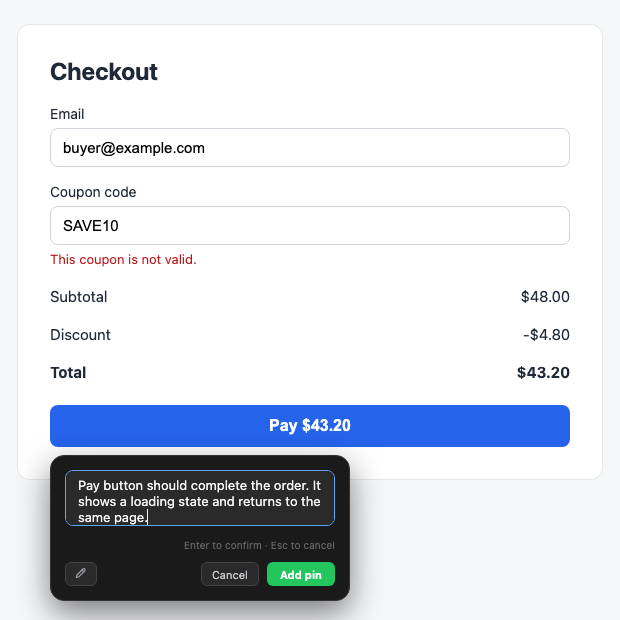
Use a pin for problems such as:
- A button does not respond.
- A field shows the wrong validation message.
- Text overlaps an image.
- A menu opens in the wrong position.
Write the problem and the expected result. **Fix this** does not give a developer enough information.
## Why use multiple pins
Use multiple pins when several observations belong to one reproduction or user task. The developer gets one report with the full context.
For example, a checkout can have a bad validation message and a broken Pay button. Add both pins to the same report when one test flow reveals both problems.
Create separate reports for unrelated problems. Separate reports are easier to [assign and resolve](/review-assign-and-resolve-reports-a27650f8).
Pins can remain available during a same-site reload or page change. This lets you collect related observations before you save.
## What happens in Jira or Linear
A report with multiple pins is one Disbug session. When you [send it to Jira or Linear](/send-reports-to-jira-linear-and-other-tools-b569a008), Disbug creates one external issue for that session.
Disbug does not create one issue for each pin. The issue description contains numbered details for all pins. Available screenshots attach to the same issue.
## Use screenshots when the state matters
A screenshot shows the page when you add the pin. Use it for layout errors, short-lived messages, and visual states.
The extension can capture the visible area or a selected area. Use the annotation tools to add marks, arrows, boxes, text, blur, or a crop.
Blur private information before you save. You can remove a screenshot and keep the pin with its other evidence.
## Use voice feedback when typing is slow
Select the microphone in the pin feedback box. Speak, examine the transcript, and edit it before you add the pin.
Voice feedback is useful for a sequence of actions or several details. The website widget does not show the voice control.
## Related
- [Install the extension and report your first bug](/install-the-extension-and-report-your-first-bug-0e29db0c)
- [Capture hard-to-reproduce bugs](/capture-hard-to-reproduce-bugs-3986142f)
- [Add a report button to your website](/add-a-report-button-to-your-website-8ca182ca)
Use pins, screenshots, and voice feedback
A pin connects feedback to one page element. Use it when the location and visible state of a problem matter.
A pin can include the page URL, selected element, feedback, screenshot, browser details, and enabled diagnostics. Capture hard-to-reproduce bugs explains the diagnostics.
A pin on a Pay button with written feedback, shown in the website widget
Use a pin for problems such as:
A button does not respond.
A field shows the wrong validation message.
Text overlaps an image.
A menu opens in the wrong position.
Write the problem and the expected result. Fix this does not give a developer enough information.
Use multiple pins when several observations belong to one reproduction or user task. The developer gets one report with the full context.
For example, a checkout can have a bad validation message and a broken Pay button. Add both pins to the same report when one test flow reveals both problems.
Create separate reports for unrelated problems. Separate reports are easier to assign and resolve.
Pins can remain available during a same-site reload or page change. This lets you collect related observations before you save.
A report with multiple pins is one Disbug session. When you send it to Jira or Linear, Disbug creates one external issue for that session.
Disbug does not create one issue for each pin. The issue description contains numbered details for all pins. Available screenshots attach to the same issue.
