A screenshot shows the final state. Diagnostics, instant replay, and screen recording explain how the page reached that state.
## Turn on diagnostics when the cause is hidden
Diagnostics can collect console messages, network requests, clicks, form changes, local storage, and replay data.
Turn them on when:
- A button does nothing.
- A request fails.
- The page shows stale or incomplete data.
- A JavaScript error appears.
- The developer cannot reproduce the problem from a screenshot.
Open **Settings** in the Disbug bar to choose the evidence that attaches to pins. Turn off data that does not help or can contain private information.
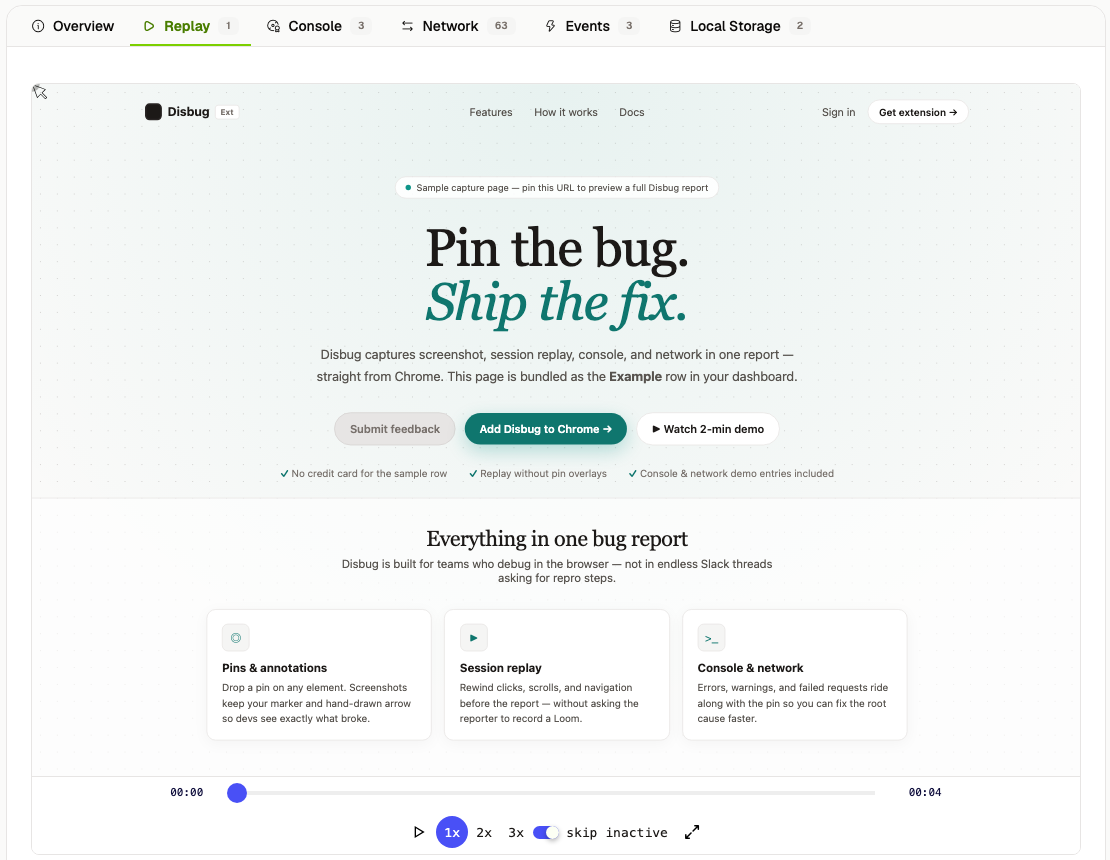
A developer sees this evidence in tabs on the saved report. The **Console** tab lists warnings, errors, and log messages with their source and time.

## What instant replay does
Instant replay keeps a short record of recent page activity. When you add a pin, Disbug saves the available lead-up activity for that pin.
Use replay when the bug depends on a sequence of clicks or a changing value. It helps a developer see what happened before the final screenshot.
Replay starts when you turn it on. It cannot recover earlier actions. It is best for the recent activity that leads to one pin.
If you use the website widget, you can connect replay to your consent settings. See [Control the widget on your site](/control-the-widget-on-your-site-d4e68a43).
## When to record the screen
Use a screen recording when motion, timing, or a long sequence is the main evidence. Common examples include a flicker, drag failure, or multi-step workflow.
1. Open Disbug.
2. Select **Record**.
3. Choose the screen, window, or tab that Chrome must share.
4. Turn the microphone or camera on only if you need it.
5. Reproduce the problem.
6. Stop the recording.
7. Examine and trim the recording.
8. Enter a title, select a project, and save.
A recording can be up to two minutes. Teammates can comment at a moment in the recording. See [Collaborate and merge duplicate reports](/collaborate-and-merge-duplicate-reports-98da5a26).
## Choose the smallest useful evidence
Use [pins](/use-pins-screenshots-and-voice-feedback-d28525a9) for exact element feedback. Use replay for the recent actions before a pin. Use a screen recording when the complete visible sequence matters.
## Related
- [Use pins, screenshots, and voice feedback](/use-pins-screenshots-and-voice-feedback-d28525a9)
- [Review, assign, and resolve reports](/review-assign-and-resolve-reports-a27650f8)
- [Connect a coding agent and watch for reports](/connect-a-coding-agent-and-watch-for-reports-87cb32a4)
Capture hard-to-reproduce bugs
A screenshot shows the final state. Diagnostics, instant replay, and screen recording explain how the page reached that state.
Use a screen recording when motion, timing, or a long sequence is the main evidence. Common examples include a flicker, drag failure, or multi-step workflow.
Open Disbug.
Select Record.
Choose the screen, window, or tab that Chrome must share.
Turn the microphone or camera on only if you need it.
Use pins for exact element feedback. Use replay for the recent actions before a pin. Use a screen recording when the complete visible sequence matters.

