Disbug groups your work in two levels. A **team** is your company, organization, or client account. A **project** is one product, website, or work stream inside that team.
## How teams and projects fit together
| | Team | Project |
|---|---|---|
| What it is | Your company or organization | One product, website, or client inside the team |
| What it holds | Members, roles, the plan and billing | Reports, the website widget, integration destinations |
| How many | One for each organization that pays separately | As many as you need in each team |
Every report belongs to one project, and every project belongs to one team.
For example, an agency can use one team for the agency and create a project for each client website. A company with two separate businesses can use a team for each business.
## Teams
A team is the unit you pay for. Each team has its own plan, and the plan sets how many members and stored reports the team can have. Members and their roles belong to the team. See [Manage your team, account, and connected agents](/manage-your-team-account-and-connected-agents-0892584b).
To create another team:
1. Open the account menu with your name at the top right of the app.
2. Select **Teams**.
3. Select **New team**, enter a name, and create the team. You become its administrator.
When you belong to more than one team, an arrow appears next to the team name at the top of the app. Select it and pick a team under **Switch Team**. Each team shows its plan beside its name.
Create a new team only when the work needs separate billing or separate people. Otherwise, add a project to your existing team.
## Projects
Use a project for one product, website, client, or work stream. Projects keep reports and integration destinations together. You can create as many projects as you need in a team.
### Create a project
A team administrator can create a project.
1. Open the team dashboard.
2. Select **New project**.
3. Enter a unique name.
4. Select **Create Project**.
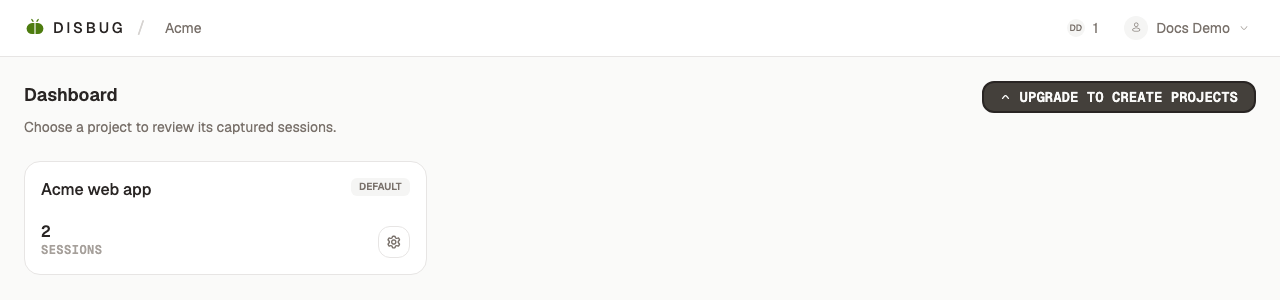
Your first project becomes the default project. Disbug uses it when a capture does not specify another project.
### Choose useful project boundaries
Create separate projects when reports need different owners, integrations, or a different website widget. Do not create a project for each small feature.
Examples include a web app, a marketing site, or one client website.
### Rename or archive a project
Open **Project Settings** to rename a project. A project name must be unique in the team.
Archive a project when you want to hide it from the main dashboard but keep its reports. You cannot archive the default project.
A team administrator can restore an archived project from **Team Settings**.
### Delete a project with care
Project deletion cannot be undone.
- If another active project exists, Disbug moves the reports to a remaining project.
- If no other active project exists, Disbug deletes the project and its reports.
- Disbug can block deletion when the project contains source reports that another report needs.
Archive the project when you might need its reports later.
### Keep capture and delivery together
Project Settings also contain the [website widget](/add-a-report-button-to-your-website-8ca182ca) and shared [integration destinations](/send-reports-to-jira-linear-and-other-tools-b569a008). Use the project that owns the reports for these settings.
## Related
- [Manage your team, account, and connected agents](/manage-your-team-account-and-connected-agents-0892584b)
- [Review, assign, and resolve reports](/review-assign-and-resolve-reports-a27650f8)
- [Add a report button to your website](/add-a-report-button-to-your-website-8ca182ca)
- [Send reports to Jira, Linear, and other tools](/send-reports-to-jira-linear-and-other-tools-b569a008)
Organize your work with teams and projects
Disbug groups your work in two levels. A team is your company, organization, or client account. A project is one product, website, or work stream inside that team.
Reports, the website widget, integration destinations
How many
One for each organization that pays separately
As many as you need in each team
Every report belongs to one project, and every project belongs to one team.
For example, an agency can use one team for the agency and create a project for each client website. A company with two separate businesses can use a team for each business.
A team is the unit you pay for. Each team has its own plan, and the plan sets how many members and stored reports the team can have. Members and their roles belong to the team. See Manage your team, account, and connected agents.
To create another team:
Open the account menu with your name at the top right of the app.
Select Teams.
Select New team, enter a name, and create the team. You become its administrator.
When you belong to more than one team, an arrow appears next to the team name at the top of the app. Select it and pick a team under Switch Team. Each team shows its plan beside its name.
Create a new team only when the work needs separate billing or separate people. Otherwise, add a project to your existing team.
Use a project for one product, website, client, or work stream. Projects keep reports and integration destinations together. You can create as many projects as you need in a team.
Create separate projects when reports need different owners, integrations, or a different website widget. Do not create a project for each small feature.
Examples include a web app, a marketing site, or one client website.
