Disbug can send a report to an issue tracker, project tool, or Slack. The external item contains the report context and a link back to Disbug.
## Supported destinations
Disbug supports Jira, Linear, GitHub, GitLab, Azure DevOps, Trello, ClickUp, Notion, Asana, Monday, and Slack.
The destination can be a project, repository, team, workspace, board, database, or Slack channel.
## Understand connections and destinations
Your provider connection is personal. It authorizes Disbug to use your provider account.
The destination and shared fields belong to the Disbug [project](/organize-reports-with-projects-b52fac17). Team members use this project configuration, but each member connects their own provider account.
## Connect and send
1. Open a report.
2. Select **Send to app**.
3. Select a provider.
4. Connect your account if Disbug asks.
5. Select the destination and issue type.
6. Edit the description if necessary.
7. Complete the required fields.
8. Select **Send**.
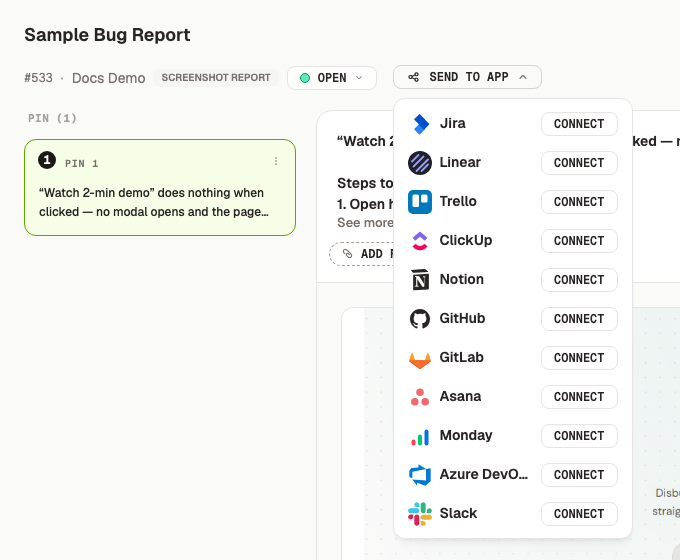
The destination list shows items that your provider account can use.
## What happens to multiple pins
Disbug sends the complete report as one external item. A report with [multiple pins](/use-pins-screenshots-and-voice-feedback-d28525a9#why-use-multiple-pins) does not create one issue for each pin.
The description contains numbered details for all pins. Available screenshots attach to the same issue. Slack receives one message for the report.
## After delivery
Disbug stores the external link. Select **View** to open the created item.
Use **Send again** only when you want another external item. A retry after a partial failure continues with the same item when possible.
## Fix a failed send
- Select **Retry** for a temporary provider, file, or network failure.
- Select **Reconnect** when authorization expired or lacks permission.
- Complete a missing required field.
- Select another destination if your account cannot use the current one.
- Wait if Disbug says that the report is already in delivery.
A failed delivery does not remove the Disbug report or its evidence.
## Related
- [Review, assign, and resolve reports](/review-assign-and-resolve-reports-a27650f8)
- [Organize reports with projects](/organize-reports-with-projects-b52fac17)
- [Connect a coding agent and watch for reports](/connect-a-coding-agent-and-watch-for-reports-87cb32a4)
Send reports to Jira, Linear, and other tools
Disbug can send a report to an issue tracker, project tool, or Slack. The external item contains the report context and a link back to Disbug.
Your provider connection is personal. It authorizes Disbug to use your provider account.
The destination and shared fields belong to the Disbug project. Team members use this project configuration, but each member connects their own provider account.
