Open the reports list to find work, examine evidence, and show the current state of each problem. Each [project](/organize-reports-with-projects-b52fac17) has its own reports list.
## Find the report you need
Filter reports by status, assignee, or unassigned state. Sort by pin count or update time. Reset the filters when the expected report does not appear.
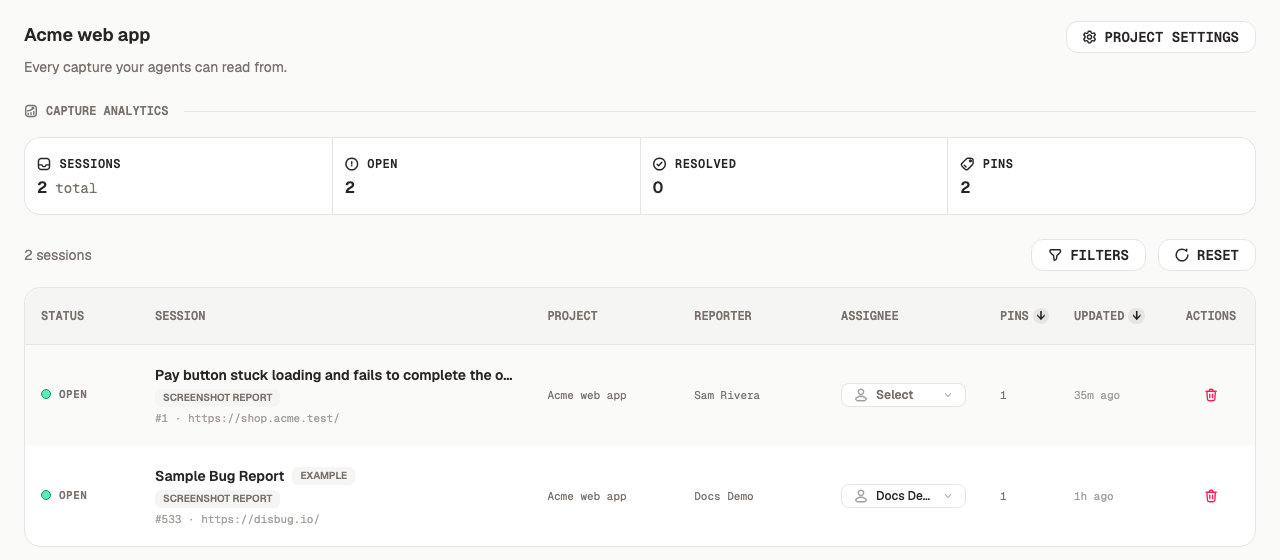
A report has one of these states:
- **Open** means that work remains.
- **Resolved** means that the team fixed or examined the problem.
- **Dismissed** means that no more work is necessary.
## Examine only the useful evidence
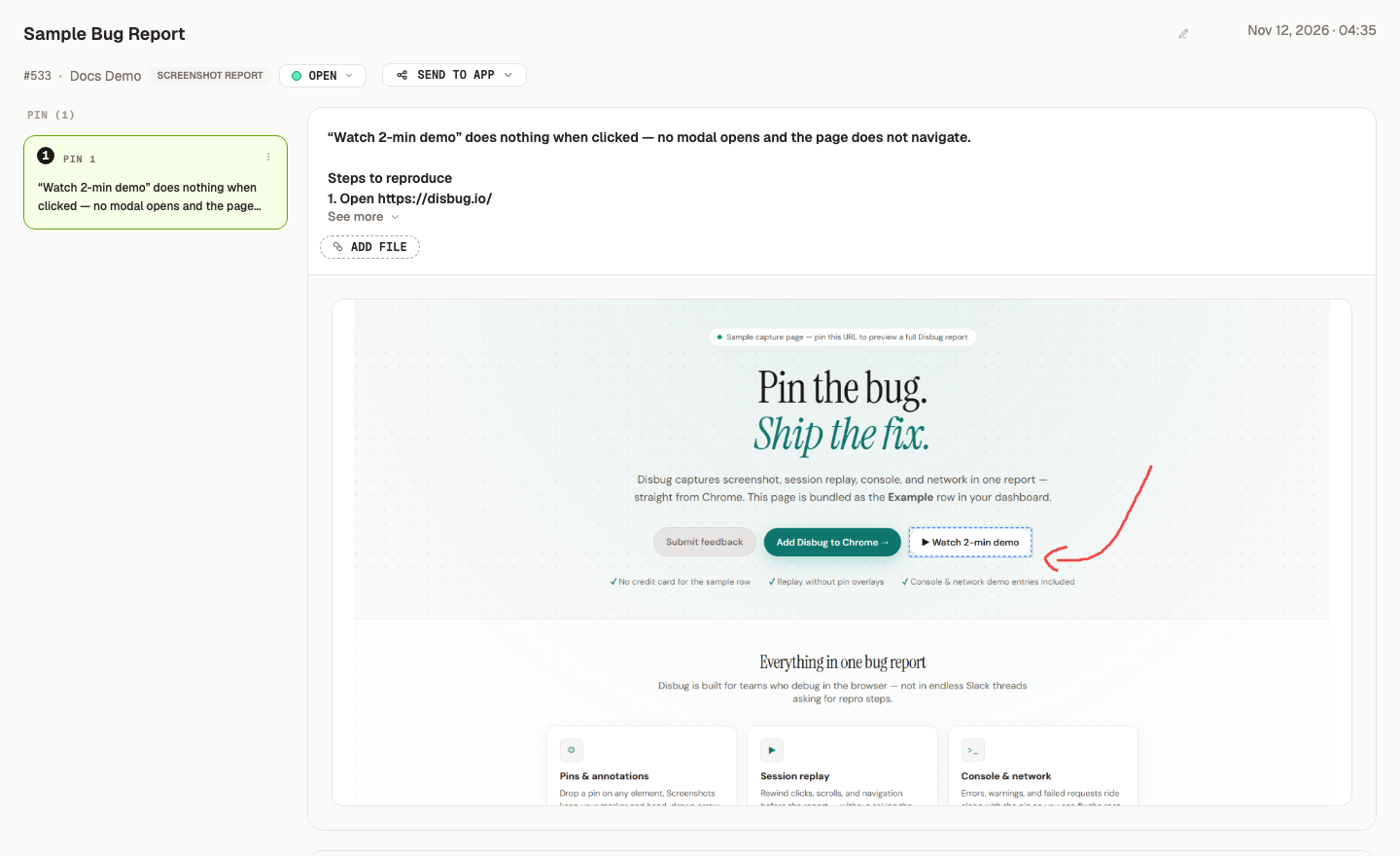
Open a report to see its title, reporter, pins, feedback, screenshots, replay, recording, and captured browser data. Select a pin to examine its evidence.
Captured logs and storage can contain private information. Open and share only what the task needs. [Capture hard-to-reproduce bugs](/capture-hard-to-reproduce-bugs-3986142f) explains each type of evidence.
Edit a report title or pin feedback when the original text is unclear.
## Assign an owner
A team administrator can assign a report to a team member.
1. Find the report in the list.
2. Open the assignee control.
3. Select a team member.
Select **Unassign** to remove the owner. Assignment availability depends on the team plan.
## Resolve a report or one pin
A report and its pins have separate state controls. One pin can be resolved while another pin remains open.
A report state change does not change each pin automatically. Examine all pins before you resolve the report.
Use **Dismissed** for a report that does not need a fix. Add enough context to help the next reviewer understand the decision.
## Related
- [Collaborate and merge duplicate reports](/collaborate-and-merge-duplicate-reports-98da5a26)
- [Send reports to Jira, Linear, and other tools](/send-reports-to-jira-linear-and-other-tools-b569a008)
- [Connect a coding agent and watch for reports](/connect-a-coding-agent-and-watch-for-reports-87cb32a4) to let an agent read and update reports.
Review, assign, and resolve reports
Open the reports list to find work, examine evidence, and show the current state of each problem. Each project has its own reports list.
Open a report to see its title, reporter, pins, feedback, screenshots, replay, recording, and captured browser data. Select a pin to examine its evidence.
A report with its pin list, screenshot, and evidence tabs
Captured logs and storage can contain private information. Open and share only what the task needs. Capture hard-to-reproduce bugs explains each type of evidence.
Edit a report title or pin feedback when the original text is unclear.

