The Disbug widget lets a user report a problem without leaving your website. Reports go to one Disbug [project](/organize-reports-with-projects-b52fac17).
## Before you start
A team administrator must enable the widget. You also need access to your website code or tag manager.
## Enable the widget
1. Open the project in Disbug.
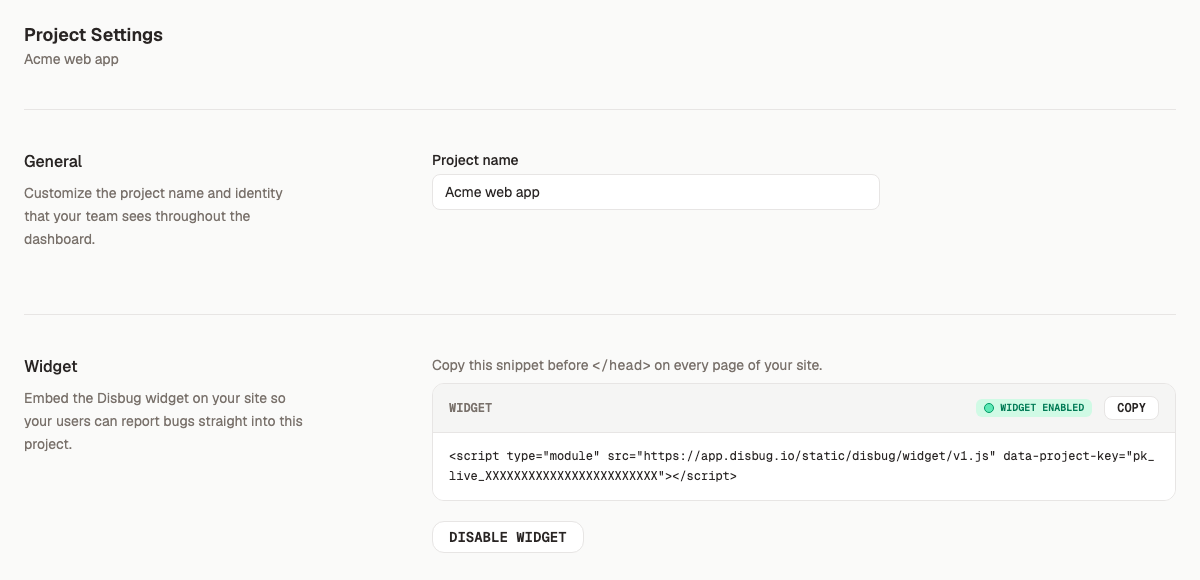
2. Open **Project Settings**.
3. Find **Widget**.
4. Select **Enable widget**.
5. Copy the generated script.
The script contains a project key. The key sends each new report to this project.
## Add the script
Add the exact script from Project Settings before the closing `</head>` tag. Add it to each page where users must report bugs.
```html
<script
  type="module"
  src="https://app.disbug.io/static/disbug/widget/v1.js"
  data-project-key="YOUR_PROJECT_KEY"
></script>
```
Use the URL and key that Disbug gives you. Deploy the change and reload the site.
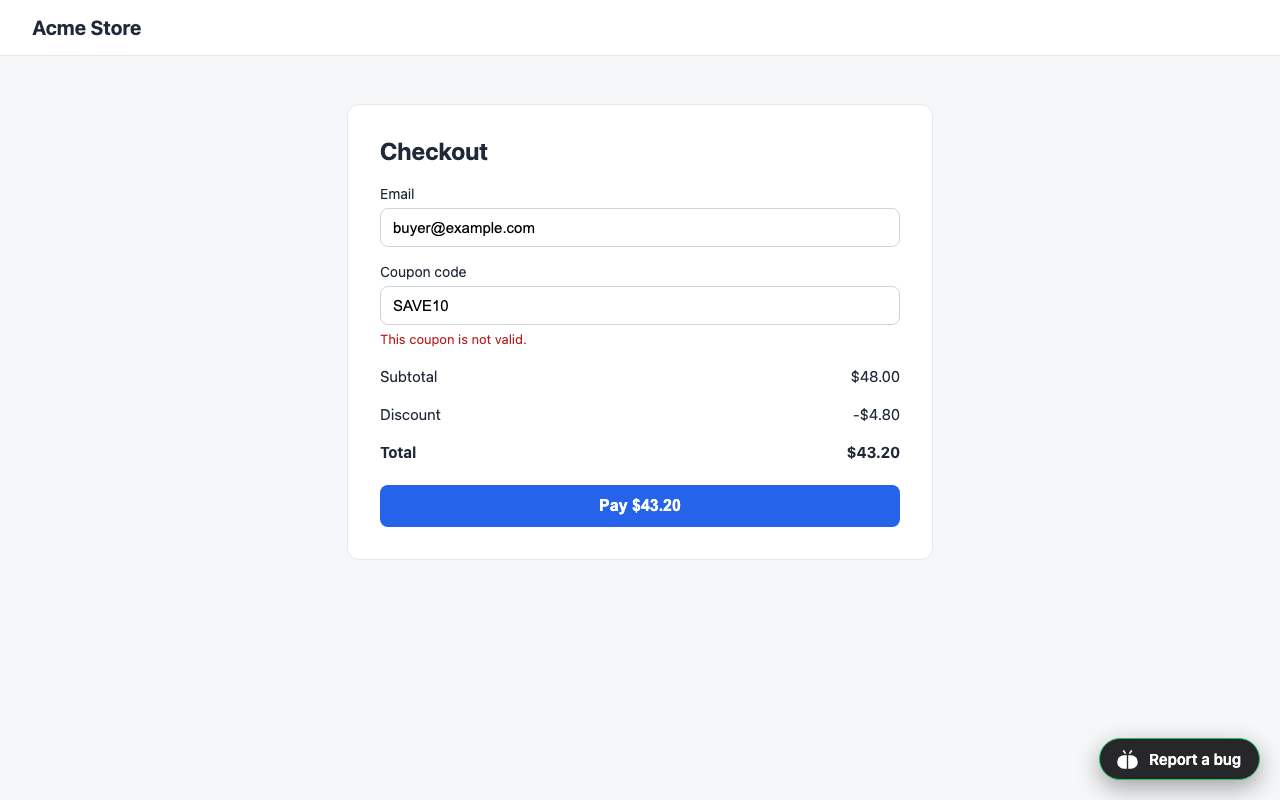
The **Report a bug** button appears in the bottom-right corner by default. To move it or open Disbug from your own button, see [Control the widget on your site](/control-the-widget-on-your-site-d4e68a43).
## Send a test report
1. Select **Report a bug**.
2. Select the element that has the problem.
3. Add useful feedback.
4. Add more pins if they belong to the same problem.
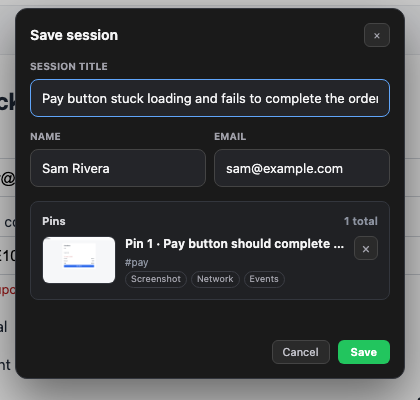
5. Select **Save**.
6. Enter the requested reporter details and report title.
7. Submit the report.
Open the Disbug project and make sure that the report appears. [Review, assign, and resolve reports](/review-assign-and-resolve-reports-a27650f8) explains the reports list.
## Understand the widget key
The widget key is made for browser code. It identifies the destination project and permits public report creation.
Use one key only for its project. Disable the widget if the site must stop accepting reports. Existing reports stay in Disbug.
## If the button does not appear
- Make sure that the script is on the page.
- Reload the page after deployment.
- Make sure that the widget is enabled in Project Settings.
- Examine the browser console for a blocked script.
- If your site uses a strict Content Security Policy, permit the Disbug script origin. See [Fix a strict Content Security Policy](/control-the-widget-on-your-site-d4e68a43#fix-a-strict-content-security-policy).
## Next step
- [Control the widget on your site](/control-the-widget-on-your-site-d4e68a43)
- [Review, assign, and resolve reports](/review-assign-and-resolve-reports-a27650f8)
- [Send reports to Jira, Linear, and other tools](/send-reports-to-jira-linear-and-other-tools-b569a008)
Add a report button to your website
The Disbug widget lets a user report a problem without leaving your website. Reports go to one Disbug project.
Use the URL and key that Disbug gives you. Deploy the change and reload the site.
The Report a bug button appears in the bottom-right corner by default. To move it or open Disbug from your own button, see Control the widget on your site.


