Disbug can configure Codex, Claude Code, and Cursor. The setup adds an MCP server entry and the `using-disbug` workflow skill. To compare the CLI, MCP, and API keys first, read [Choose between API keys, CLI, and MCP](/choose-between-api-keys-cli-and-mcp-ac09b73e).
## Install and connect
[Install the CLI](/choose-between-api-keys-cli-and-mcp-ac09b73e#use-the-cli-for-terminal-work-and-scripts), then run guided onboarding.
```bash
disbug onboard --agent codex
```
Use `claude-code` or `cursor` for the other supported agents. You can also run the steps separately:
```bash
disbug login
disbug configure --agent codex
disbug doctor
```
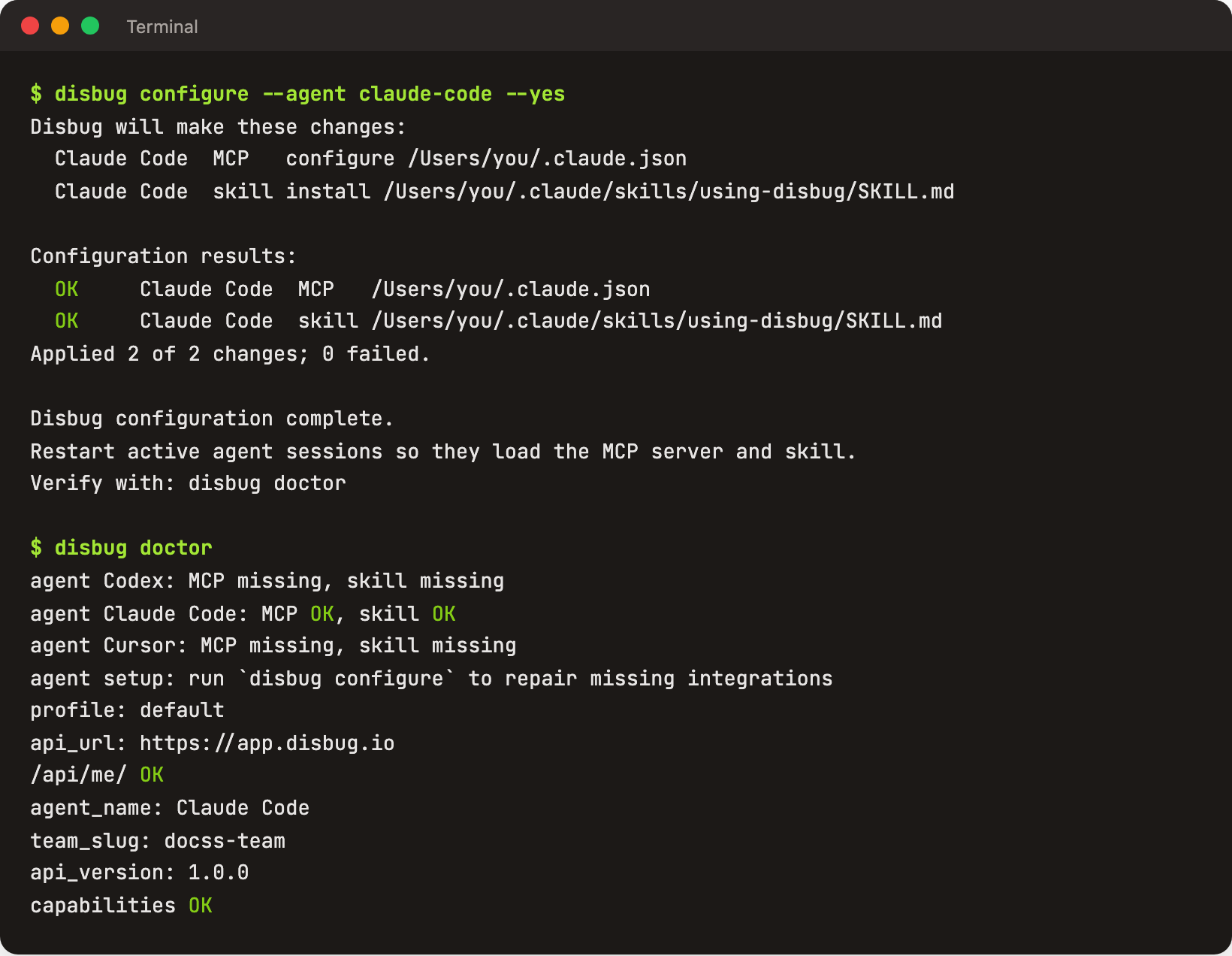
Disbug shows the planned configuration changes before it applies them. Restart the coding-agent session after configuration.
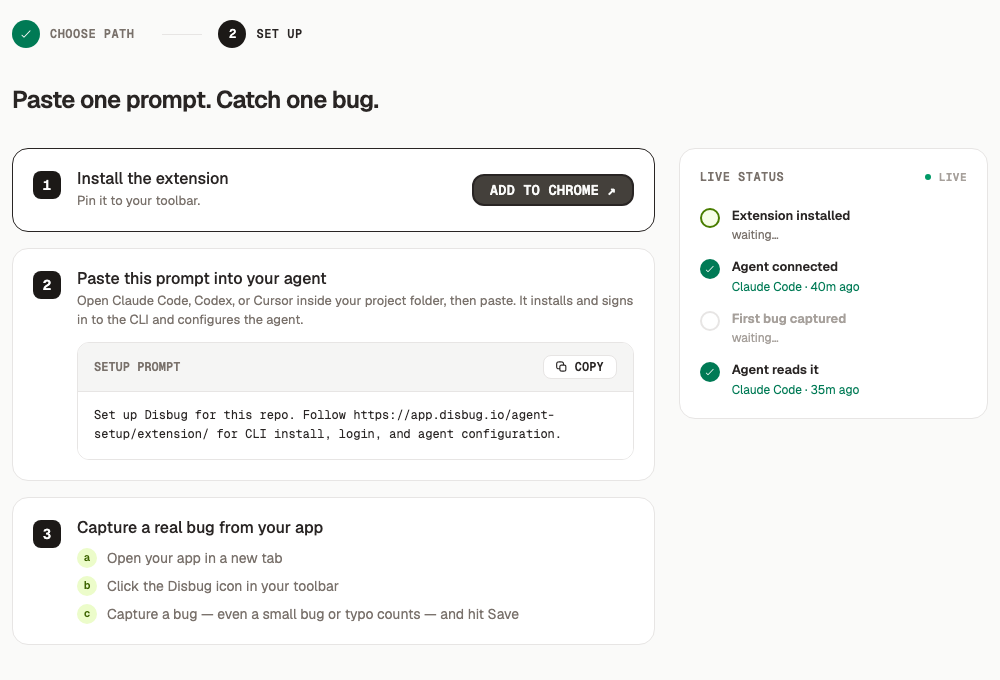
The setup page in the Disbug app also gives you a setup prompt. Paste it into Claude Code, Codex, or Cursor inside your project folder. The agent installs the CLI, signs in, and configures itself.
## Make sure that MCP works
Open the MCP settings in the coding agent and make sure that `disbug` appears. Ask the agent to call the Disbug `whoami` tool.
If the agent cannot find the executable, use the full `disbug` path in its MCP configuration. Run `which disbug` on macOS or Linux. Run `where.exe disbug` on Windows.
Automatic setup supports Codex, Claude Code, and Cursor. The CLI repository also has manual recipes for Claude Desktop, Hermes, and OpenClaw.
## Give the agent a report
Paste the Disbug report URL into the coding-agent prompt. Ask the agent to inspect the report with Disbug tools before it changes code.
The agent can request only the evidence that it needs. It can then update the pin or report state if its connection has write permission. [Review, assign, and resolve reports](/review-assign-and-resolve-reports-a27650f8) explains report and pin states.
## Watch for new reports
Use `disbug watch` for a long-running report stream.
```bash
disbug watch --project website --status open --format text
```
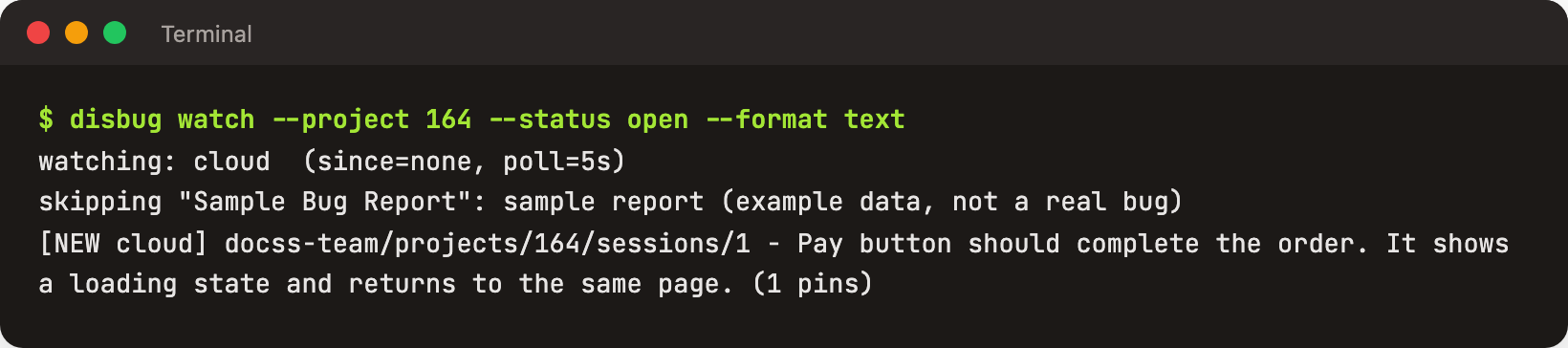
Each new report appears as one line while the watcher runs.
Use JSONL for another process:
```bash
disbug watch --format jsonl
```
Use `--exec` to run your own command for each new live event.
## Understand the closed-agent limit
`disbug watch` is a CLI process. It does not start or wake a closed coding-agent session.
Keep the watcher and the necessary agent process active when your workflow depends on live reports. A shell hook can start or contact another process, but Disbug does not do that by itself.
## Fix common problems
- Run `disbug doctor` after configuration.
- Restart the coding-agent session after an MCP change.
- Run `disbug whoami` when the wrong team appears.
- Log in again if the token no longer works.
- Ask an administrator to examine the connected agent when reads work but state changes fail. See [Manage connected agents](/manage-your-team-account-and-connected-agents-0892584b#manage-connected-agents).
## Related
- [Choose between API keys, CLI, and MCP](/choose-between-api-keys-cli-and-mcp-ac09b73e)
- [Manage your team, account, and connected agents](/manage-your-team-account-and-connected-agents-0892584b)
- [Capture hard-to-reproduce bugs](/capture-hard-to-reproduce-bugs-3986142f) to give the agent more evidence.
Connect a coding agent and watch for reports
Disbug can configure Codex, Claude Code, and Cursor. The setup adds an MCP server entry and the using-disbug workflow skill. To compare the CLI, MCP, and API keys first, read Choose between API keys, CLI, and MCP.
Use claude-code or cursor for the other supported agents. You can also run the steps separately:
bash
disbug login
disbug configure --agent codex
disbug doctor
Disbug shows the planned configuration changes before it applies them. Restart the coding-agent session after configuration.
disbug configure and disbug doctor for Claude Code
The setup page in the Disbug app also gives you a setup prompt. Paste it into Claude Code, Codex, or Cursor inside your project folder. The agent installs the CLI, signs in, and configures itself.
The setup prompt and live status on the setup page
Open the MCP settings in the coding agent and make sure that disbug appears. Ask the agent to call the Disbug whoami tool.
If the agent cannot find the executable, use the full disbug path in its MCP configuration. Run which disbug on macOS or Linux. Run where.exe disbug on Windows.
Automatic setup supports Codex, Claude Code, and Cursor. The CLI repository also has manual recipes for Claude Desktop, Hermes, and OpenClaw.
Paste the Disbug report URL into the coding-agent prompt. Ask the agent to inspect the report with Disbug tools before it changes code.
The agent can request only the evidence that it needs. It can then update the pin or report state if its connection has write permission. Review, assign, and resolve reports explains report and pin states.
disbug watch is a CLI process. It does not start or wake a closed coding-agent session.
Keep the watcher and the necessary agent process active when your workflow depends on live reports. A shell hook can start or contact another process, but Disbug does not do that by itself.


